Markup tools
Flattening and Unflattening Markups
Flattening fixes markups in place so they stop behaving like editable objects, which helps before sharing a set for review, or when you want a page to stop moving under someone else's cursor. Unlike flattening in a traditional PDF editor, it is reversible here: the markups are kept, not burned into the page, so Unflatten restores them exactly.
Updated 2026-07-03 · 4 min read
On this page
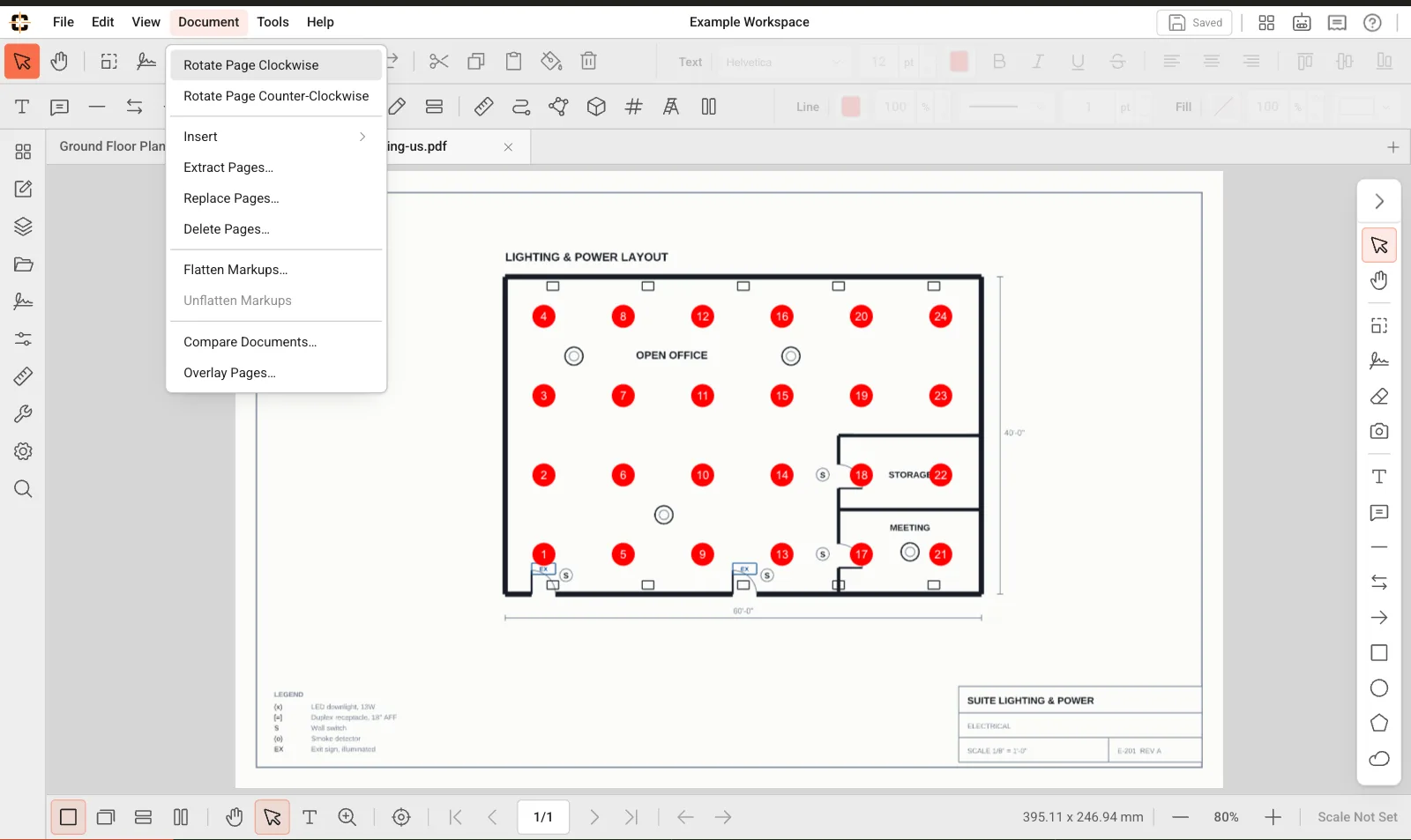
Flatten Markups and Unflatten Markups both live in the Document menu.
Flatten a page or the whole drawing
- 1
Open Document > Flatten Markups
The command sits in the Document menu. It is unavailable while a workspace is read-only, and while you have no markups left to flatten.
- 2
Choose the scope
Flatten every unflattened markup on the drawing, or select specific pages and flatten only those. Selecting no pages in page mode does nothing, so pick at least one.
- 3
Confirm
The confirmation names how many markups and pages are affected, so you can check the scope before committing.
What changes once markups are flattened
- 1
They stop being editable
Flattened markups become part of the drawing content rather than selectable objects, so a stray click cannot move or resize them.
- 2
They still belong to you
The markup records are preserved behind the scenes, which is what makes the step reversible. Nothing is destroyed.
- 3
New markups keep working
You can carry on marking up the same page after flattening. New markups stay editable and are unaffected by the earlier flatten.
Unflatten to bring markups back
- 1
Open Document > Unflatten Markups
The command appears once there is something to restore.
- 2
It restores the most recent flatten
Unflatten peels back the latest batch. If you flattened three times, run it three times to get back to fully editable, newest batch first.
- 3
Everything returns as it was
Restored markups keep their geometry, styling, page and properties. This is a restore, not a redraw.
Limits and permissions
- 1
Size ceilings
A single flatten covers up to 5,000 markups and 1,000 pages. Split very large sets across more than one flatten if you exceed that.
- 2
Editing rights
Both commands need edit access to the drawing version. Read-only viewers and locked versions cannot flatten or unflatten.
- 3
Exports are unaffected
Exported PDFs render markups the same either way, so flattening is about protecting your working copy rather than changing output.
Related topics
Related product guides
These broader guides explain how this support workflow fits ContractorCounter's markup, measurement, takeoff, and export toolset.
Still stuck?
Tell us what you're trying to do and we'll help you get there.